Evermotion: More Than an Asset Library
How Evermotion became a full-scale production partner for archviz, automotive and synthetic data.


Total: € 0
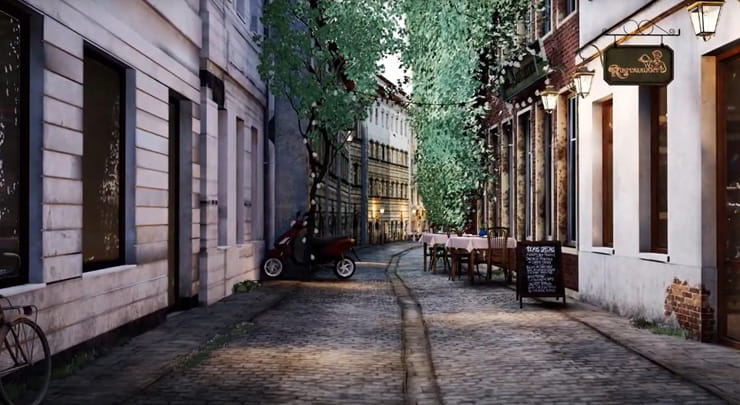
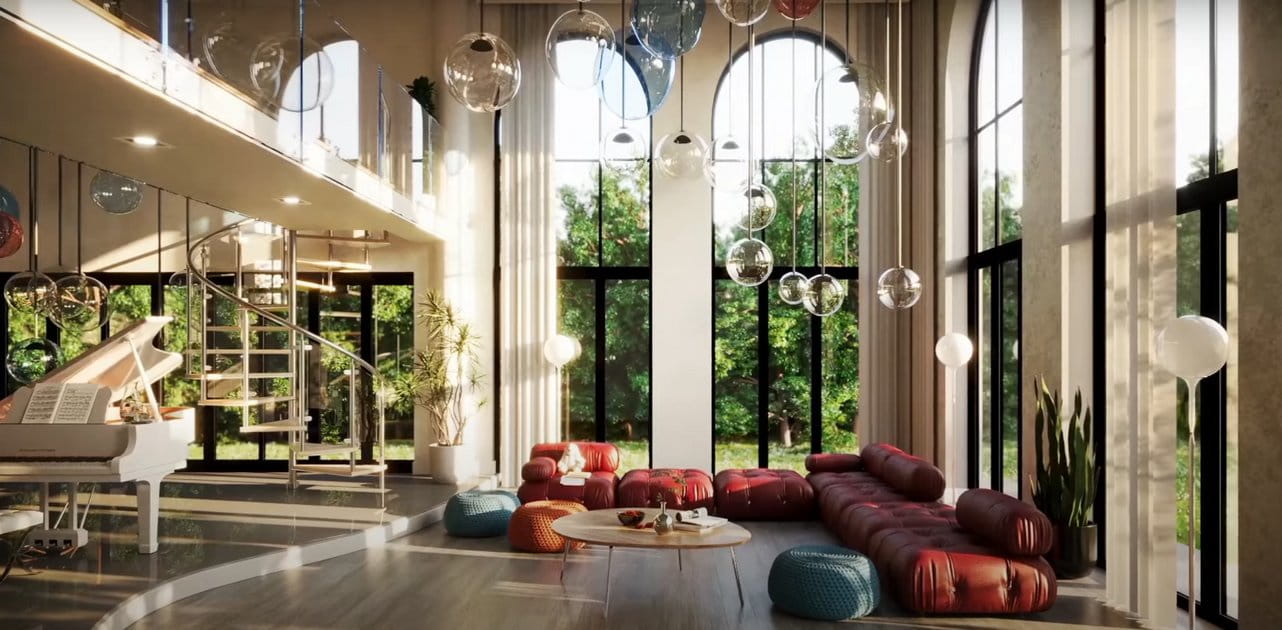
This is not a full tutorial but this video shows some tips to do before exporting the scene from 3ds max to Unreal Engine with Datasmith plugin.
You especially need to take care of detaching objects to smaller parts. It requires patience, but the result is worth it. Detaching every object to smaller parts allows yopu to use lightmaps of lower resolution. In this Evermotion scene every object has a light map resolution value of 64. You can increase it, but it will take more time to bake and sometimes the difference will be minor.
Check all materials and make sure that every object has at least one texture in any material map (such as normal map or diffuse only) and apply uvw map for any object that doesn't has any texture in any material map and choose box in uvw mapping parameters panel then make (length & width & height = 100).
All lighting is exported from 3ds max file with datasmith plugin and then modified the light intensity.





LEAVE A COMMENT



|

|

|

|

|
 Customer zone
 Your orders
 Edit account
 Add project
 Liked projects
 View your artist profile
COMMENTS