This tutorial takes users through the process of creating and publishing animated rendered frames of products, using 3ds Max, V-Ray and Webrotate 360.
Tutorial parts:
- 2:02 set up the 3ds max scene
- 3:00 Load up the V-ray rendering engine and set up the scene for draft renders
- 7:31 Create and setup a V-Ray Dome light
- 8:40 Add the vray environment exposure control
- 8:55 Apply and edit the Vray HDRI light
- 11:17 Create and edit a camera animation
- 17:39 Create and edit a v-ray material
- 20:19 Add and edit HDRI to the environment
- 21:10 Add and edit a 3ds max LUT file in the frame buffer
- 22:37 Create and Edit a stainless steel material
- 25:04 Set up V-ray for High resolution renders
- 26:05 Create an animatic preview
- 26:41 Fixing gamma issues
- 27:25 Use LUT Explorer script to save the render with the LUT applied
- 29:36 Use Garagefarm to render the frames
- 35:50 Create Photoshop actions to automatically apply LUT files and reduce image sizes
- 39:20 Upload and launch your files using webrotate 360 spot editor


 Customer zone
 Your orders
 Edit account
 Add project
 Liked projects
 View your artist profile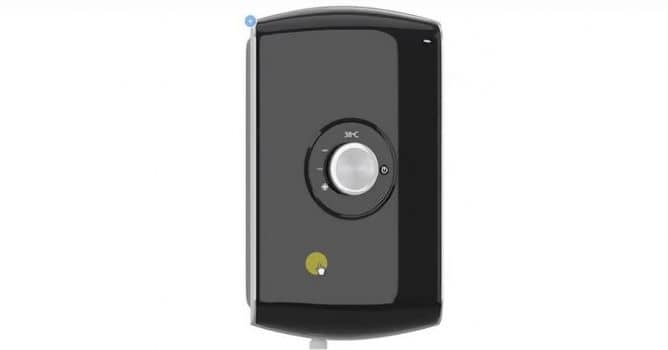









COMMENTS