This one will show how to easy extract some part of image. We'll try to leave only the car and swap whole background.
First we need to make layer from backround. Simply choose "layer/new/layer from background.." from the menu and click OK with default options.

Now have to switch to quick mask mode by clicking icon on the left (hotkey: "q")

Now when we're editing image in quickmask mode we need to paint with all useful tools (brushes, fills) on part we wanna save (a whole car in my case). Painted areas are turning red, notice you can use eraser tool also

Whith bigger and smaller brushes I finished covering whole object.

Now we have to quit quick mask mode by clicking on appropriate icon (or pressing "q" key again) -our quick mask will turn into selection.

Notice we have selected all except masked area so there's nothing left to do then press "delete" key to get rid off unwanted part. And here's what we get -separated car.

And that's it. Now you can create layer below current and design a new composition. Something like this for example..
 Best Regards,
Damian 'Mime' Bajowski


 Customer zone
 Your orders
 Edit account
 Add project
 Liked projects
 View your artist profile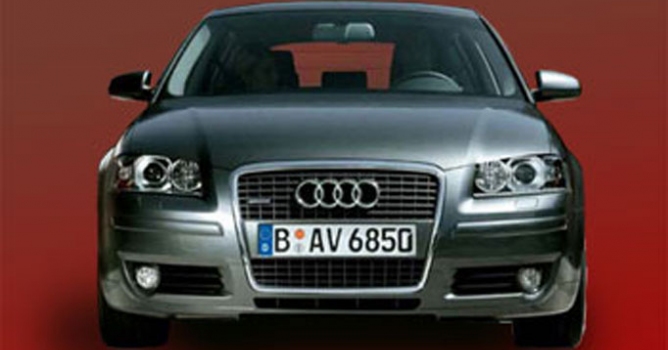












COMMENTS