Last time we did pencils, time to move forward and cover it with ink. I found some rubbish pen in my pencil case, liqid ink and fine pens. Also some markers would be handy. Well I must say that pen I used could be really better becouse this one drove me mad couple of times. Anyway lets start form the begining.
Started with pen, made some base strokes. To be honest If you want make it really good, you'll need lot of patience and be very precise. Personally I don't like inking very much so must say I did not put as much effort as it needs. Well, everything can be corrected digitally in the end but it's better to do it corectly at this stage of course.

Switching between pen and fine pen I got something like that. I'm affraid it will loose lot of details during scanning process so I try to focus on most important things and keep my drawing pretty clean.

Now take the marker and black parts of image. I did them mostly on Joker's hair and cast shadow. Of course doing the same with ink gives you better effect but takes much more time :) After scan you can even recognize which parts were done with marker (it's rather dark gray then black) but we will get rid of it using appropriate applications.

To keep work clean for flats we need really only black and white image and nothing beetween. We can play of course with levels and so forth in Photosop but I decided to convert scann to vector image. It will give a little bit worse effect but it's the fastest way. So. I took eraser, removed pencil, scanned ink and traced bitmap (you can do it with every vector graphic application I suppose). Than export vector image back to Photoshop and got final result.

Ok, hope it's good enough for doing the flats. See you in next part...
Best Regards,
Damian 'Mime' Bajowski
Go to part 1
Got o part 4



 Customer zone
 Your orders
 Edit account
 Add project
 Liked projects
 View your artist profile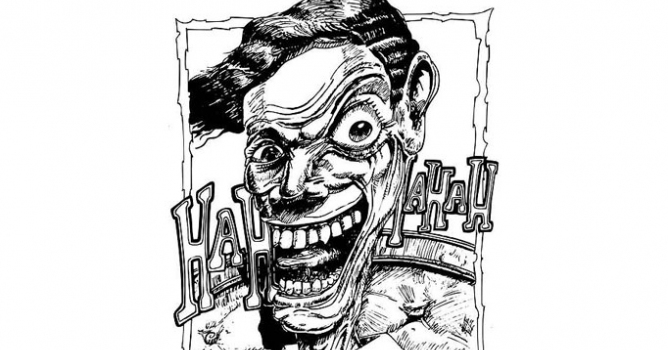










COMMENTS