Search
Cart
Sign in
  • offerCustomer zone
  • offerYour orders
  • offerEdit account

  • offerAdd project
  • offerLiked projects
  • offerView your artist profile

  • Dark mode

We care about your privacy

We use cookies to provide you with the best possible experience. They also allow us to analyze user behavior in order to constantly improve the website for you. The consent is voluntary. You can withdraw it at any time or renew it in Cookie settings on the home page. Withdrawal of your consent does not affect the lawfulness of processing performed before the withdrawal. Privacy Protection Policy
Accept all
Accept selection
Reject all

How to create a wavy wall

Vesna Zivkovic 2016-04-26 09:59 tutorial  > 3ds MAX  > modeling

Gain better shape control with wavy wall 3ds Max tutorial by Vesna Zivkovic.

Click on image to enlargeImage1.jpg

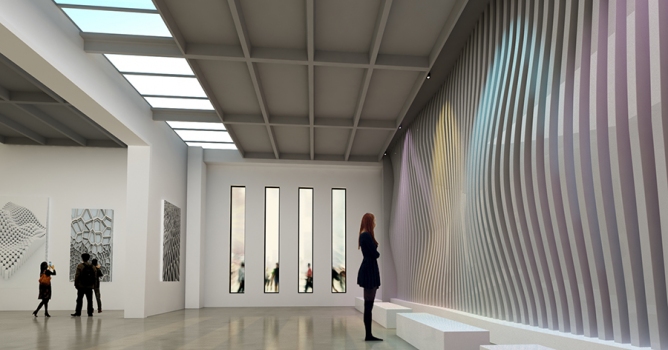
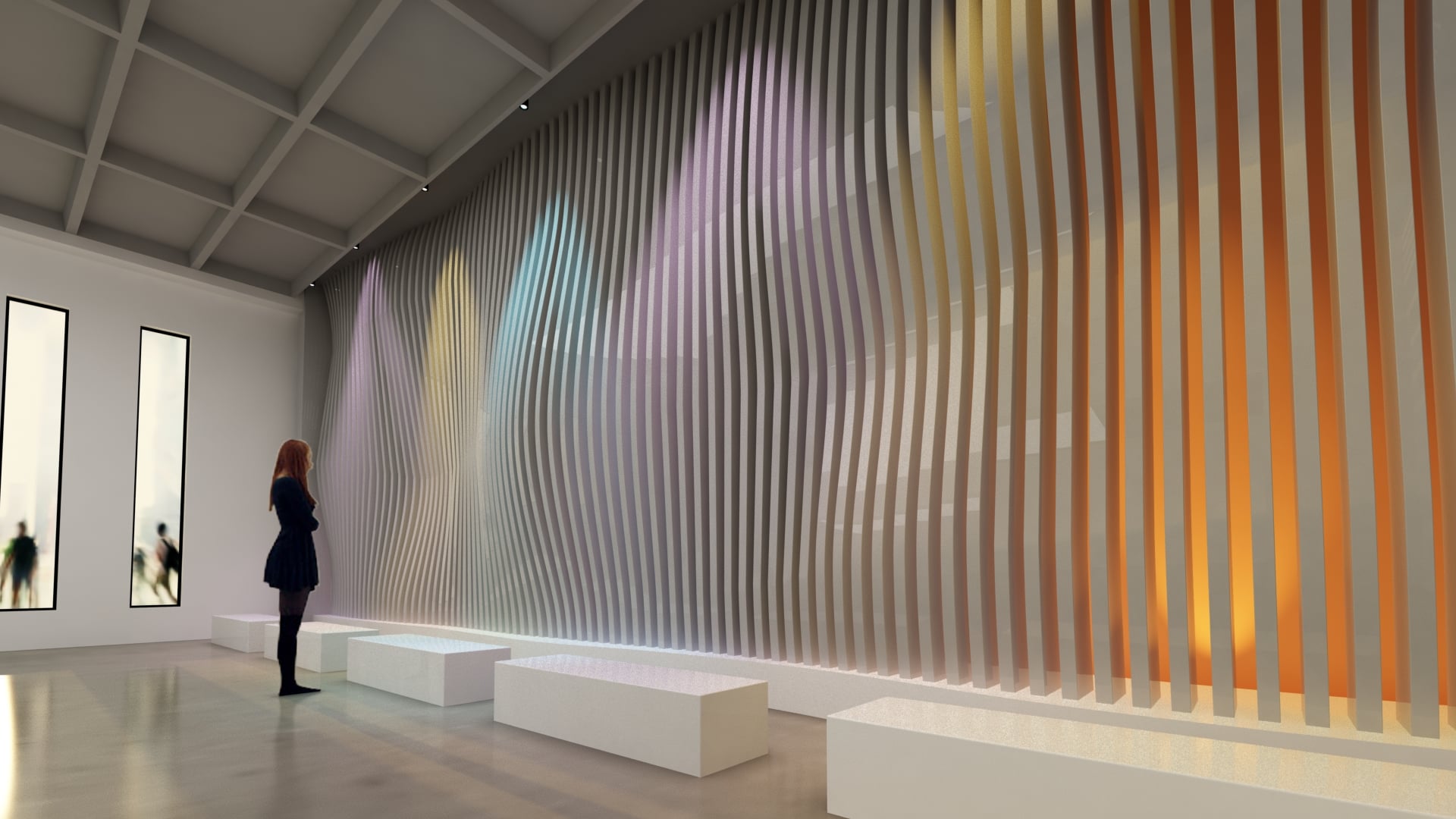
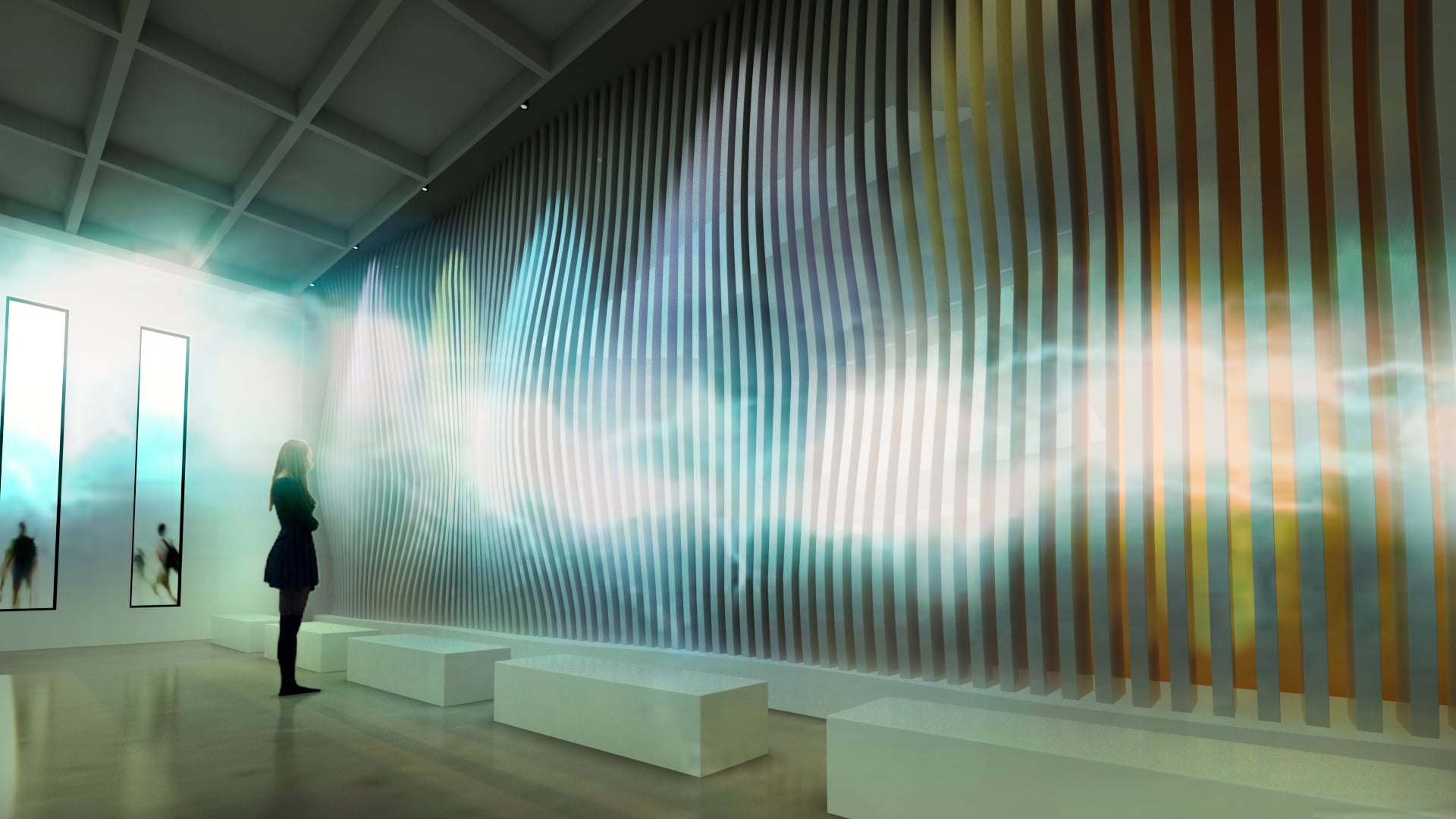
Final image.


Click on image to enlargeImage2.jpg

First, draw some idea.


Click on image to enlargeImage3.jpg

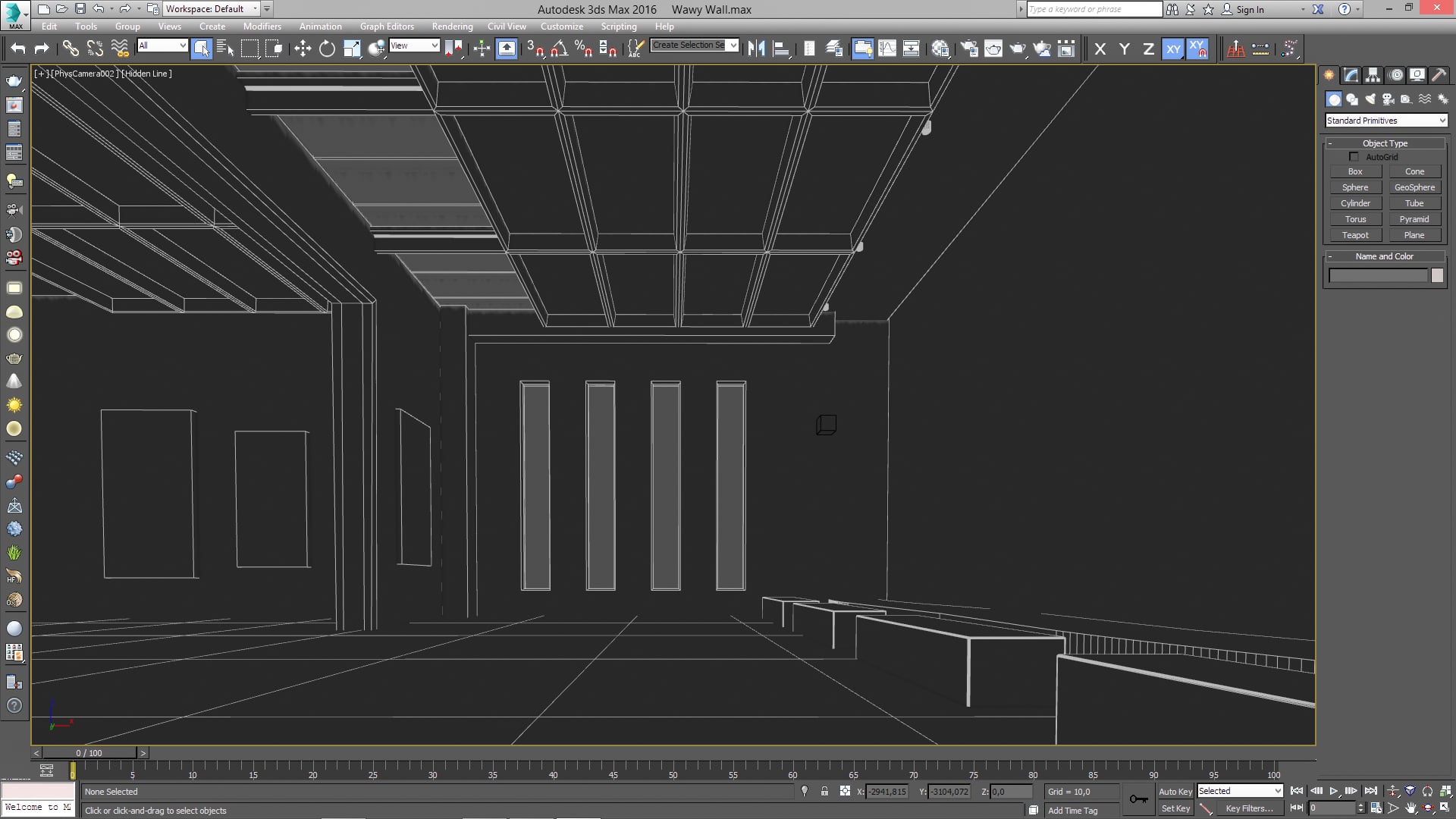
Modeling the scene.


Click on image to enlargeImage4.jpg

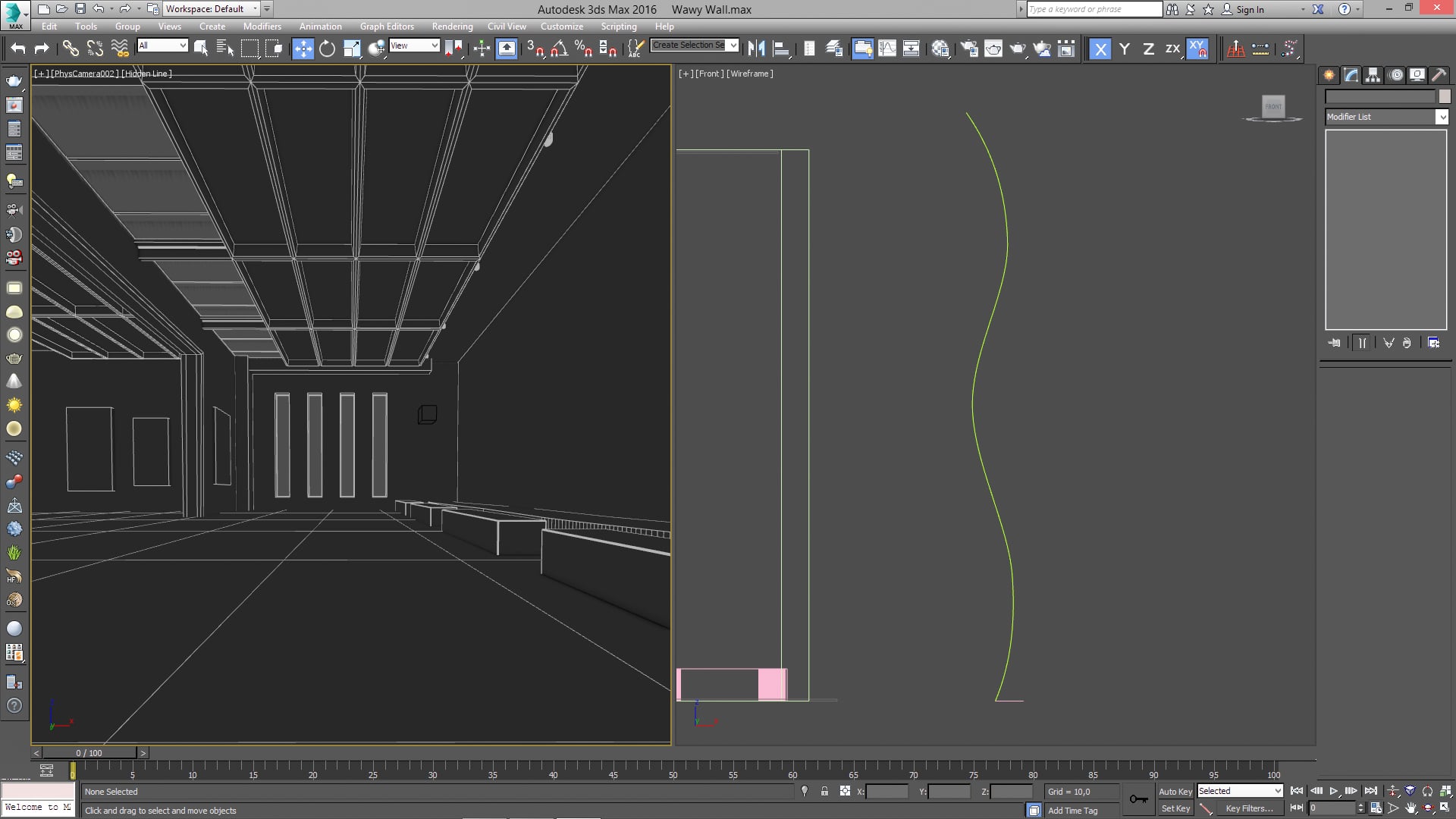
Draw the curve line - basic shape of the wawy wall (height).


Click on image to enlargeImage5.jpg

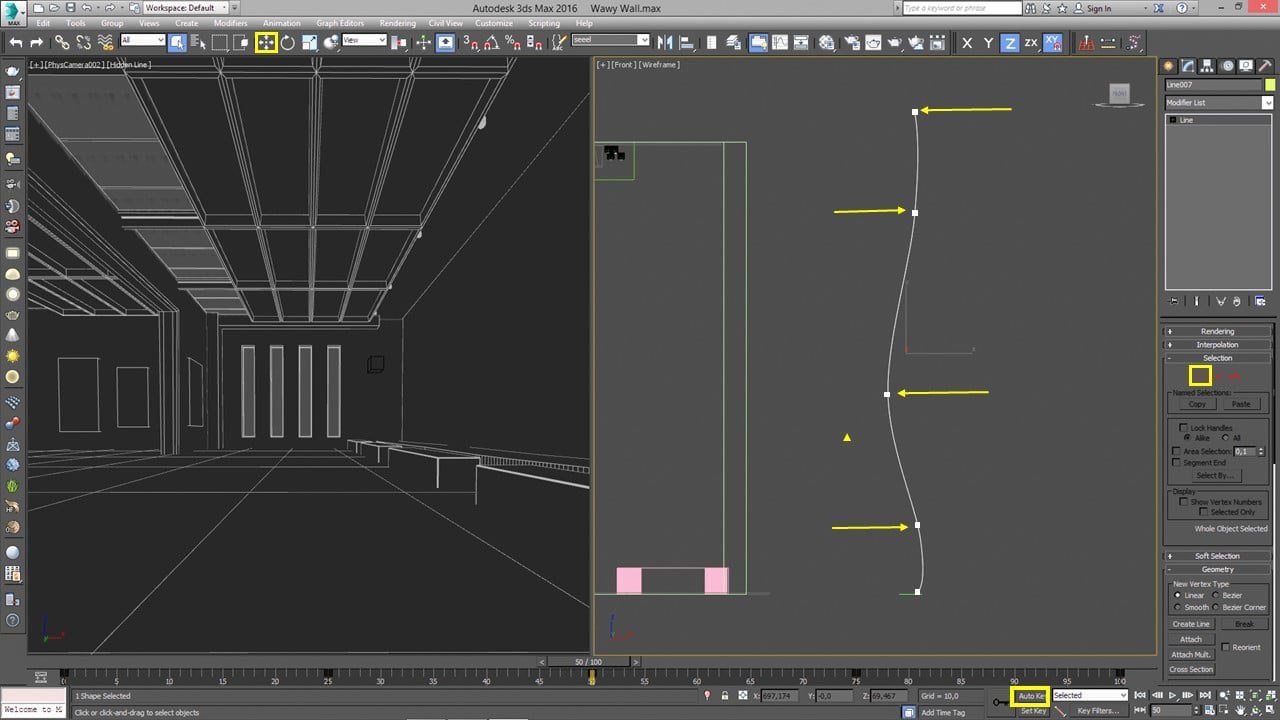
Animate vertex position in different directions. Every 25 frames change the vertex position.


Click on image to enlargeImage6.jpg

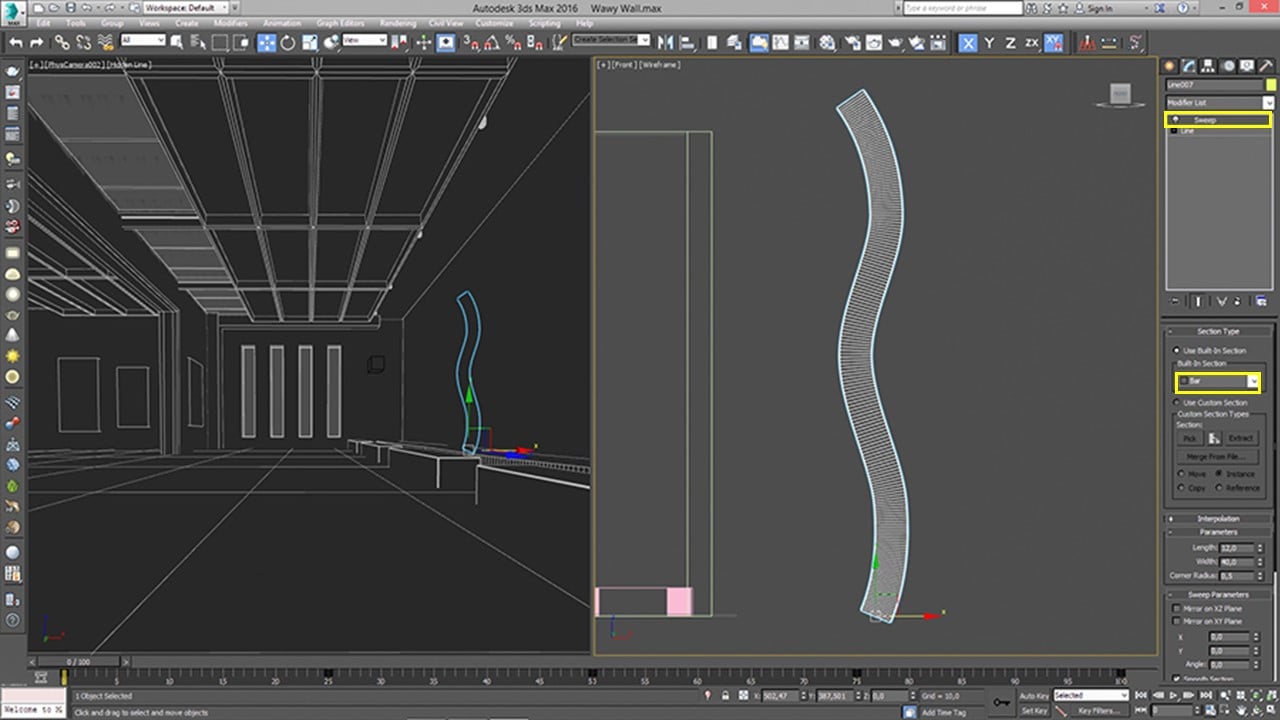
Modifier Sweep – Bar Section.


Click on image to enlargeImage7.jpg

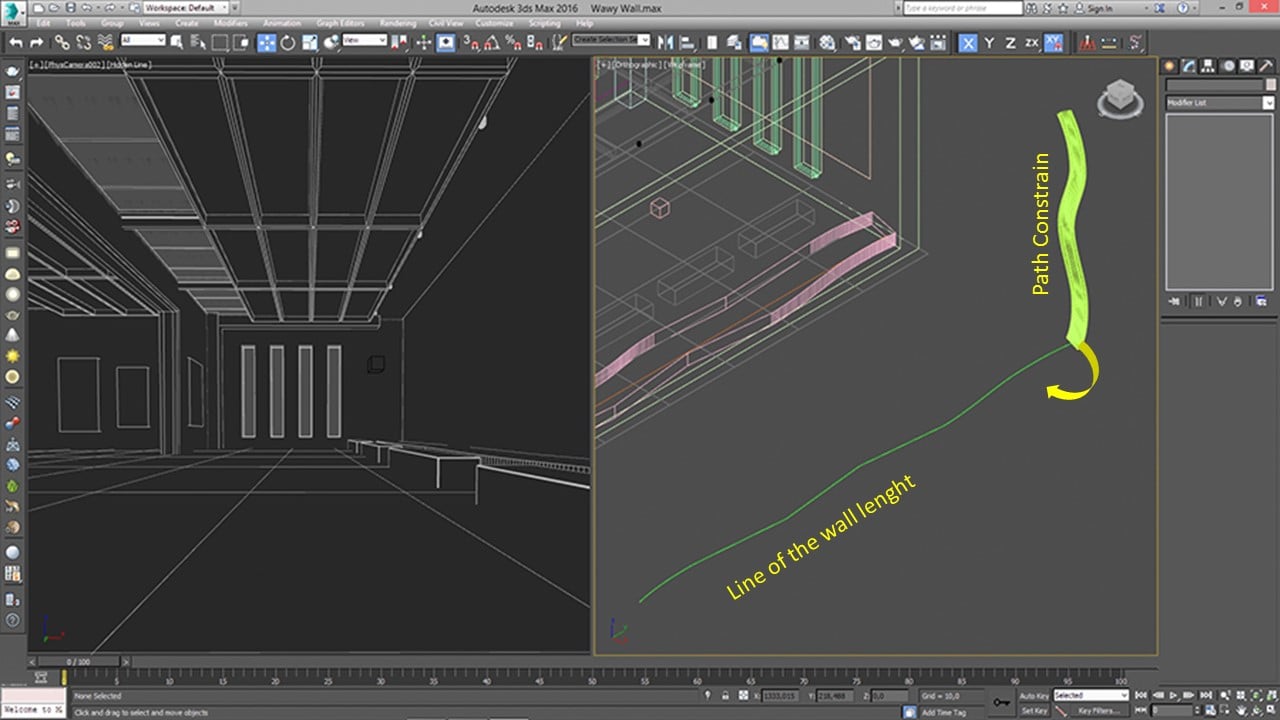
Draw the line of wall length. Put the Path Constrain on Sweep line and click on the wall length line.


Click on image to enlargeImage8.jpg

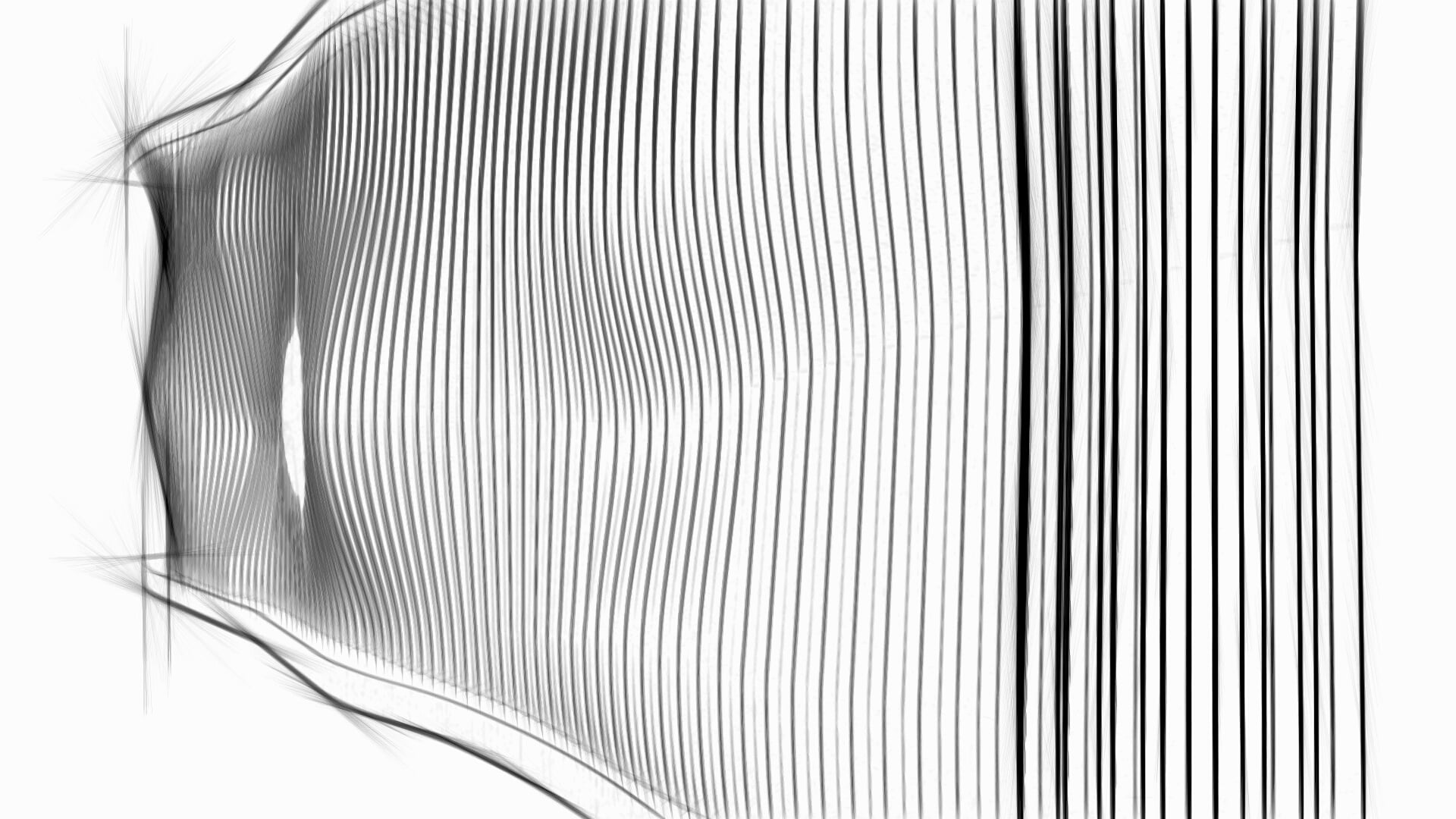
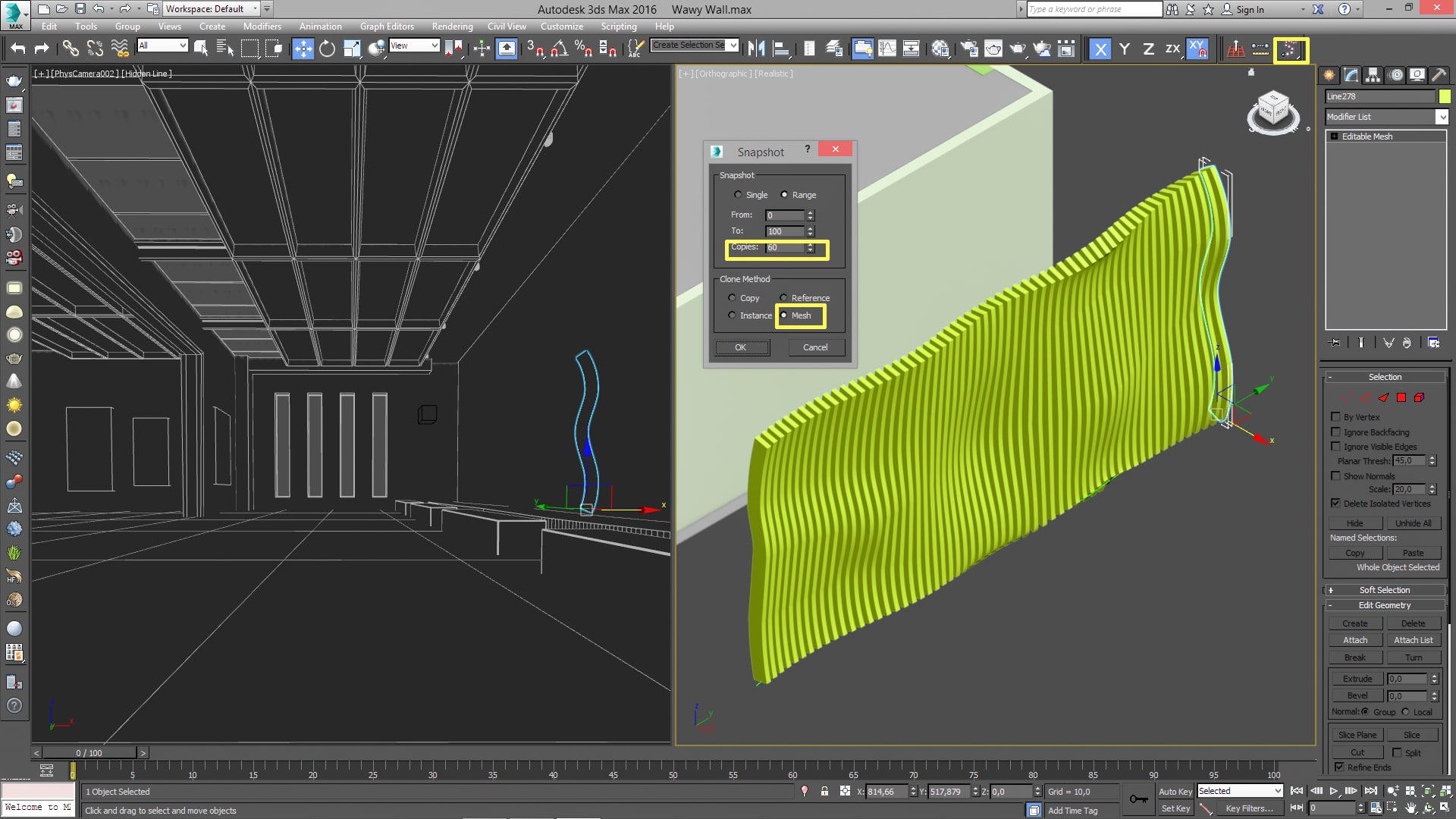
With Snapshot (Many Tools) create some Mesh copies of Sweep line.


Click on image to enlargeImage9.jpg

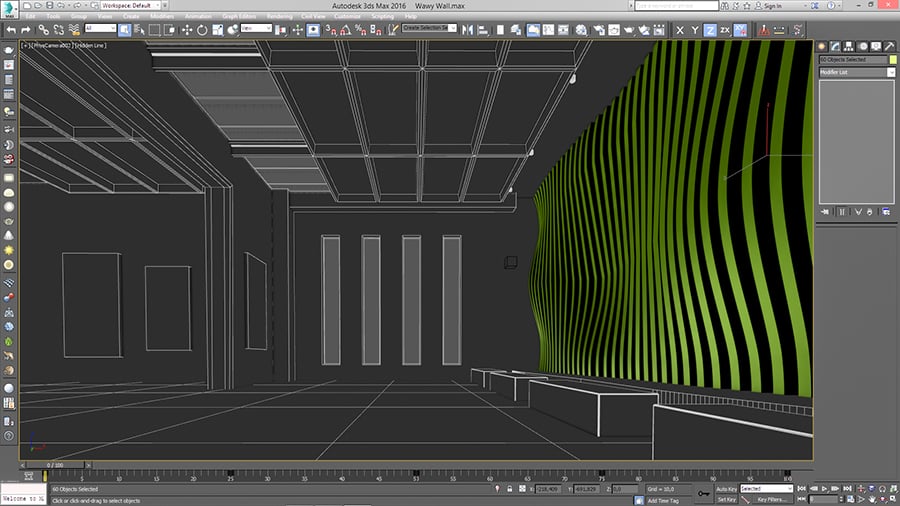
Put a wall in the scene.


Click on image to enlargeImage10.jpg

Rendering in V-Ray.


Click on image to enlargeImage_11.jpg

Rendering.


Click on image to enlargeImage12.jpg

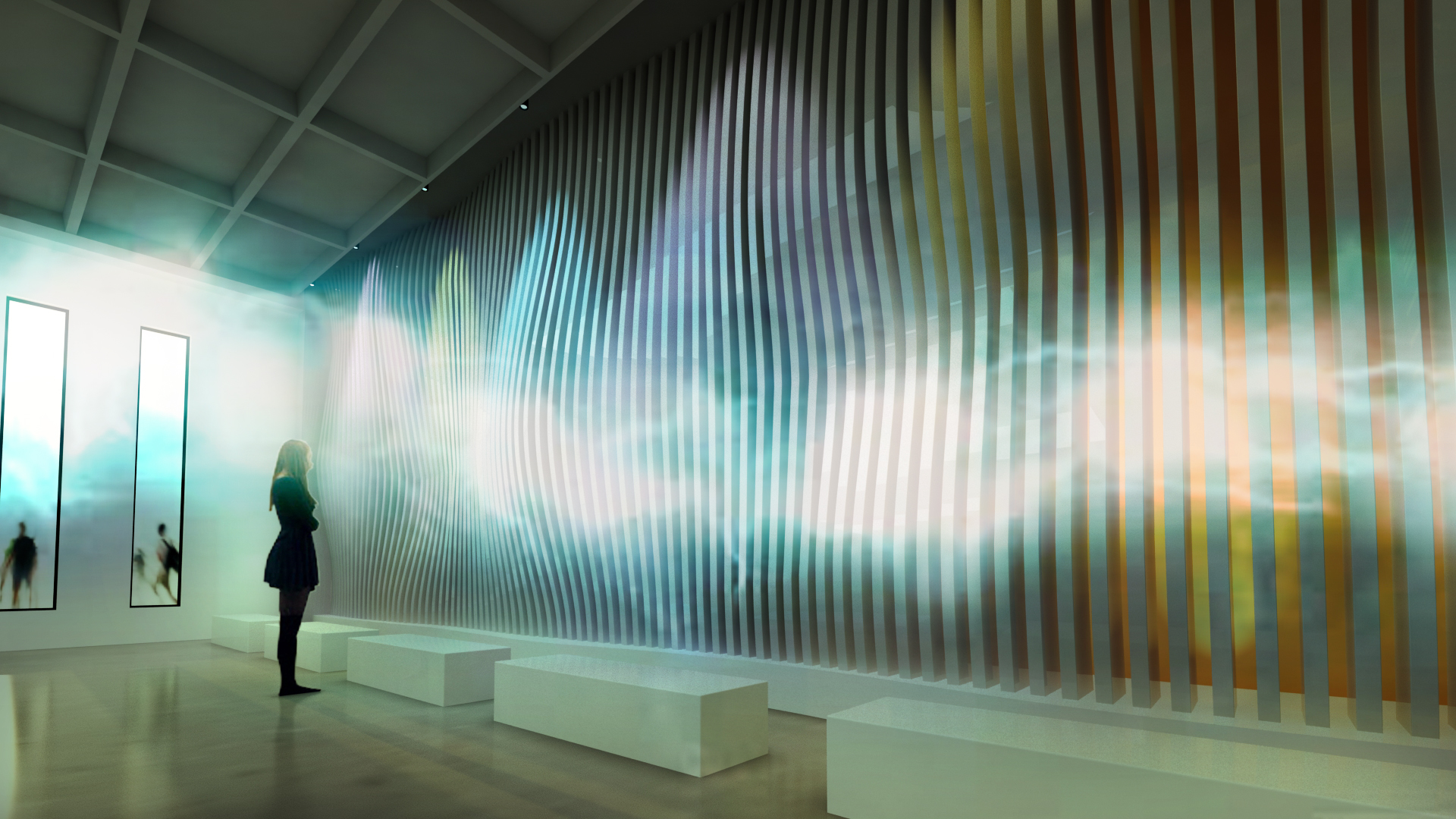
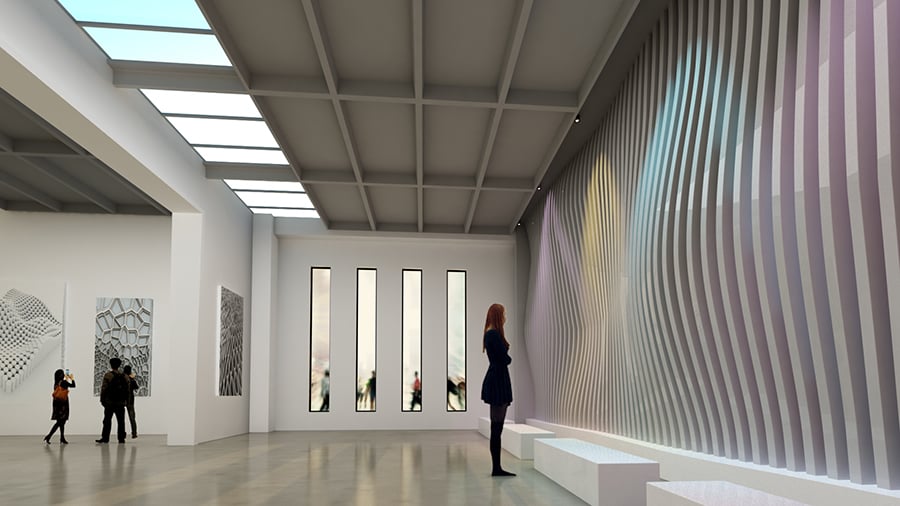
Some Photoshop magic.
 
 
Author: Vesna Zivkovic Editor: Michał Franczak
Tags: 3dsmax wavywall
You may also like...
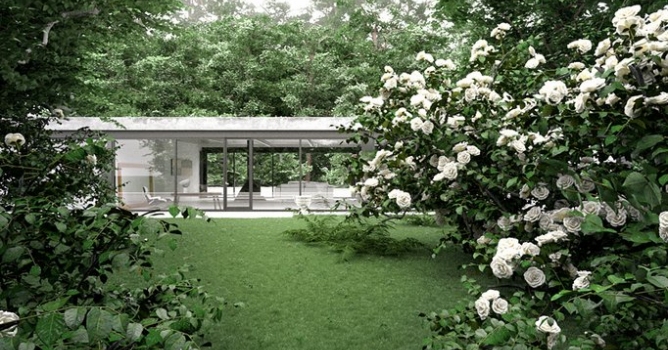
Lost in the garden

Lost in the garden

Tutorial by Federico Ciavarella for 3ds Max / V-Ray users.
×

LEAVE A COMMENT

You need to be logged in to leave a comment. Don't have account? Register now.

WaseemOnLiNe 10:37:32  |  27-04-2016
very nice and useful tutorial, but I wonder if it will be the same result if we use 'spacing too'
mali22 11:24:26  |  27-04-2016
I think that with spacing tool you would need another way to offset the curve animation (maybe with point cache or something), otherwise all of the curves would look the same. The author's technique seems like a better approach. Quite clever really, I never thought of using the snapshot tool in this way.
vesnazivkovic 13:34:39  |  28-04-2016
Spaceing Tool do not respect animation changes.