RenderRam is covering another 5 max features that went under peoples radars: Modifier-Based Space Warps Area To Render, Show Dependencies, Show Ghosting, Prepend Scene Name.
In 3ds Max, the "Show Dependencies" feature is a powerful tool that allows users to visualize and understand the relationships and dependencies between different objects, materials, and other elements within a scene. This feature is particularly useful for complex scenes where multiple elements are interconnected through various modifiers, controllers, materials, and hierarchies. Here’s a detailed explanation of the "Show Dependencies" feature:
Purpose of "Show Dependencies"
Understanding Relationships: Helps users comprehend how different objects and elements are linked. This is crucial for debugging, optimizing, and managing scenes.
Troubleshooting: Identifies issues related to object transformations, material assignments, and modifier effects.
Scene Management: Assists in maintaining a clean and organized project by revealing dependencies that might need attention before deleting or modifying objects.
How to Use "Show Dependencies"
Accessing the Feature:
Select the object or element you are interested in.
Right-click to open the Quad menu, and look for the "Show Dependencies" option. This might be under a submenu such as "Object Properties" or similar, depending on your customization and version of 3ds Max.
Viewing Dependencies:
When "Show Dependencies" is activated, 3ds Max displays a dialog box or a window that outlines the dependencies of the selected object.
This window typically shows a tree or a list structure, detailing how the selected object is connected to other objects, materials, controllers, and modifiers.
Components of the Dependencies Dialog
Parent-Child Relationships: Displays hierarchical relationships between objects, showing which objects are parented to others.
Modifiers and Controllers: Lists any modifiers and controllers applied to the object and their dependencies.
Material Assignments: Shows how materials are linked to objects, revealing dependencies on material libraries or maps.
Animation Dependencies: Displays any animation controllers or constraints that affect the object, providing insight into keyframe and procedural animations.
Practical Applications
Cleaning Up Scenes: Before deleting an object, using "Show Dependencies" can ensure that you are not inadvertently removing elements that other objects depend on.
Optimizing Performance: By understanding dependencies, users can optimize their scenes for better performance, for example, by simplifying complex hierarchies or removing unnecessary modifiers.
Fixing Broken Links: If objects or materials are missing or broken, "Show Dependencies" can help trace back to the root of the issue and facilitate troubleshooting.
Example Workflow
Select an Object: Choose an object that appears to have issues or needs examination.
Right-Click and Select "Show Dependencies": This will open the dependencies dialog.
Analyze the Dependencies: Look through the tree or list to understand how the object is connected to others.
Make Informed Decisions: Based on the dependencies, decide whether to modify, delete, or troubleshoot specific elements without disrupting the scene.
Tips
Regular Checks: Regularly use "Show Dependencies" to keep track of complex scenes, especially after major changes or imports.
Customization: Customize your Quad menu to have quick access to "Show Dependencies" for efficiency.
Combine with Other Tools: Use in conjunction with other scene management tools like "Select by Name" and the "Scene Explorer" for a comprehensive understanding of your scene.
By leveraging the "Show Dependencies" feature, users can maintain better control over their 3ds Max projects, ensuring that scenes are organized, efficient, and free of unintended consequences due to hidden dependencies.
Veras 5.3 introduces NODES, a visual workflow builder now in Beta that lets users generate parametric geometry and bake it directly into Revit, Rhino, or SketchUp. The system shifts Veras from rendering-first to a full generative design platform with interactive design tools.
SketchUp 2025–2026 has added native PBR materials, AI image generation, and real-time rendering plugins like Lumion View, letting archviz artists produce photorealistic images without leaving the viewport. This collapses the traditional design-to-render pipeline.
Maxon's Redshift 2027.0 cuts render times by up to 15% through memory optimization and adds official Archicad integration alongside improved materials and live feedback tools.
Blender 5.3 arrives November 10 with DLSS 4.5 Ray Reconstruction, an AI-powered denoiser for Cycles that works on RTX 20–50 series cards. The upgrade promises faster interactive lighting workflows at near-final quality.
Chaos released V-Ray for Blender 7.4 with Windows ARM64 compatibility, Phoenix Ocean textures for exterior scenes, Quick Sun Caustics for realistic lighting, and tools to organize large asset libraries and migrate from Blender's native renderer.
Maxon's October 2026 release adds procedural vegetation scattering, reworked GPU memory management in Redshift, and liquid simulation—streamlining environment work and viewport iteration for archviz studios.
A free community plugin now lets 3ds Max users with older GPUs access neural rendering via DLSS 5, potentially speeding up renders without hardware upgrades.
SketchUp 2025–2026 has added native PBR materials, AI image generation, and real-time rendering plugins like Lumion View, letting archviz artists produce photorealistic images without leaving the viewport. This collapses the traditional design-to-render pipeline.
In this walkthrough, we guide you through the process of building a polished 3D interior scene inspired by the cover of Archmodels vol. 306 – Table Sets.





 Customer zone
 Your orders
 Edit account
 Add project
 Liked projects
 View your artist profile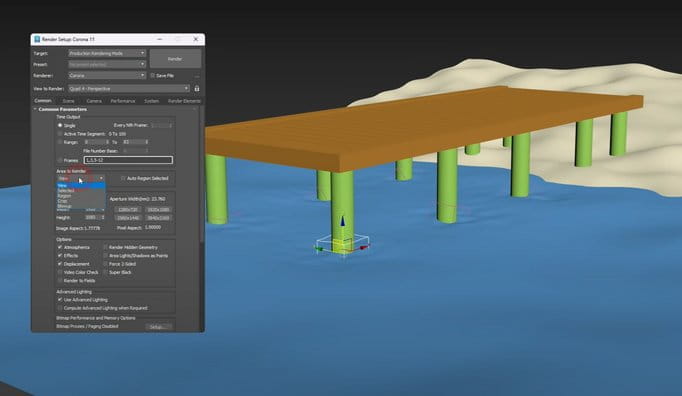













COMMENTS