Print Size Wizard | 3dsMax Tips
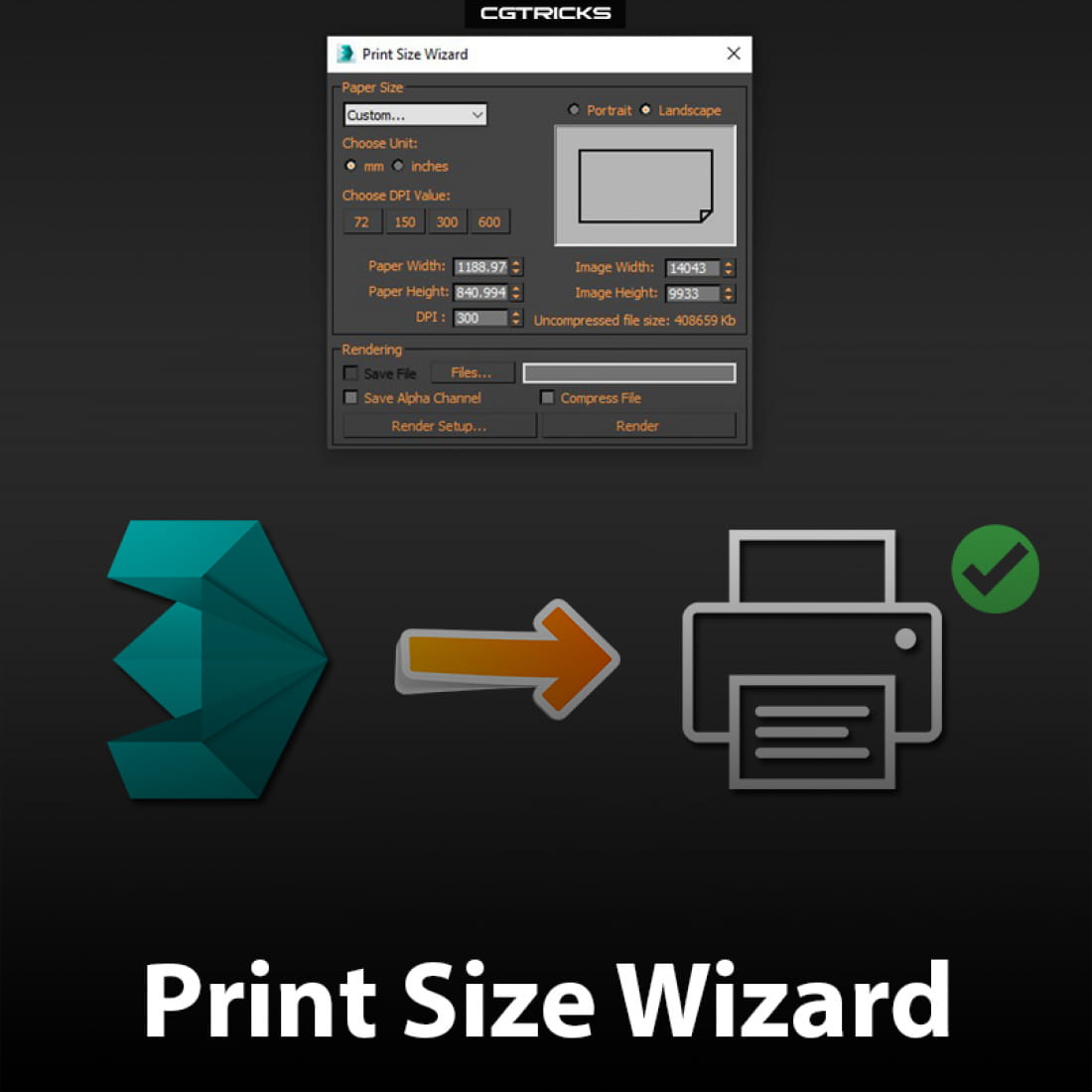
The Print Size Wizard feature is useful when you plan to print a rendered image. It lets you specify output size, resolution, and orientation in terms of the printed image; that is, using a standard measuring system rather than pixels. It also indicates the approximate uncompressed size of the image file. You can render directly from the wizard on your computer or over a network, or transfer the settings to the Render Setup dialog.
Standard menu: Rendering menu > Print Size Assistant
Enhanced menu: Rendering menu > Tools (Rendering Set) > Print Size Assistant
Design Ribbon > Lighting And Rendering tab > Render Tools panel > Print Size Assistant
To use the Print Size wizard:
Set up a scene to render.
From the Rendering menu, choose Print Size Assistant.
Choose a preset paper size, or specify a custom size in inches or millimeters. Alternatively, specify an image size in pixels.
Choose or specify a DPI (dots per inch) ratio for the printed output.
Choose an output orientation: Portrait or Landscape.
When ready to render to a file, turn on Save File, click the Files button, and use the resulting Select TIFF File dialog to specify an output image file.
Do one of the following:
To render immediately, click Render.
To set further rendering properties, click Render Setup.
https://youtu.be/GdKQ6ZET75Y
---
CGTricks | https://cgtricks.com
Posted on 10.01.2020
You have to be logged in to like this project
 wuanhyu
LEAVE A COMMENT




 Customer zone
 Your orders
 Edit account
 Add project
 Liked projects
 View your artist profile