We are more than an asset library

Watch our Showreel
Search
Cart
Sign in
  • offerCustomer zone
  • offerYour orders
  • offerEdit account

  • offerAdd project
  • offerLiked projects
  • offerView your artist profile

  • Dark mode
    ✔
Mental Ray 3.5 - Sky and Sun.

Mental Ray 3.5 - Sky and Sun.

MF 2007-01-31 00:00 tutorial  > 3ds MAX  > rendering

In this tutorial I will show you how you can very fast set up exterior render using mrSky and mrSun.

1. At first download and open scene - start.max (this model is free for not commercial use). SCENES


2. Now insert camera to the scene.


3. Now go to create -> systems -> daylight


4. No change position of the daylight to the manual. And move it some other position.


5. Now change sunlight to mr Sun and skylight to mr Sky


6. Now click F10 and in the bottom of first tab change active renderer:


7. Now go to material editor and edit materials to make them all Arch & Design (mi) type


8. Now return to rendering options (F10) and change few things. We need to turn on GI to see sky effects on the model.


9. Now go to render -> environment and click preview:


10. Now change exposure settings:


11. Now go to F10 and click render. Well look at the horizon it should be little lower.


12. Go to options of daylight and set height of horizon to -0,2


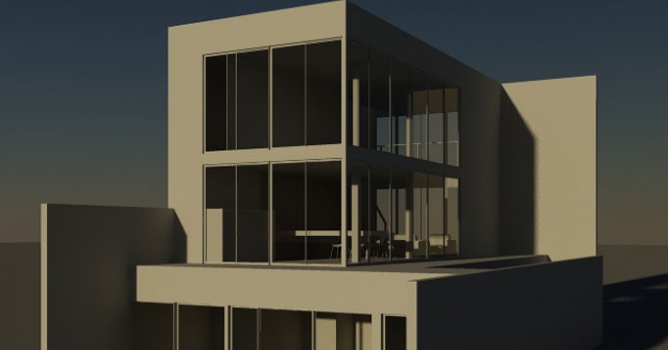
13. And render it again.


Here is another shot of this render


Best regards
 
 
Author: MF
Tags:
You may also like...
3D character models: when to use ready-made assets instead of custom designs

3D character models: when to use ready-made assets instead of custom designs

Working in CG and archviz often means balancing creative intent with production realities. Human presence can support scale, context, and clarity, but it also adds another layer of decisions. Ready-made 3D character assets help keep visual focus where it belongs without expanding the project scope beyond its real needs
×

LEAVE A COMMENT

You need to be logged in to leave a comment. Don't have account? Register now.